

Introduction
Audio clarity is crucial for podcasts, YouTube videos, online classes, and voice notes. Traffic, fan sounds, and keyboard clicks degrade recording quality. This disrupts listeners and destroys audio quality. Fortunately, this can be fixed without the need for a sound expert or expensive software. Free software may decrease or remove undesirable noise from recordings with just a few clicks.
You can clean audio quickly and easily with online AI-powered noise removers or trusted editing apps. This guide shows how to eliminate background noise from audio using an internet service for rapid results and Audacity for greater flexibility. Helpful recording tips will also be provided to avoid noise.
Method 1: Removing Noise with an Online Tool (Ease and Accessibility)
Background noise can muddle a great recording. Noises like electrical hums, conversation, and traffic noise can ruin a podcast, lecture, or song. Today’s AI-driven tools can solve this problem without pricey software. One of the easiest alternatives is the web-based EaseUS Online Vocal Remover, which cleans audio and video files quickly.
Users who want a quick, easy, and free way to improve their audio without installing software will love this solution. Easily eliminate background noise with a browser and an internet connection. The EaseUS Online Vocal Remover package includes Noise Reducer. It automatically removes noise from audio and video files using powerful AI models. The platform provides a seamless and easy experience for both beginners and professionals.
Key Features of EaseUS Online Noise Reducer
- AI-Powered Noise Removal — Reduces background, electrical, and ambient noise.
- Supports 60-minute, 1GB files.
- Export processed findings as WAV or video.
- Free/Paid Options: Pro users can upload an unlimited number of files and leverage AI processing, while free users can process up to 3 files/day.
- YouTube/SoundCloud Integration—Extract audio from links for fast cleanup.
Step-by-Step Tutorial: EaseUS Online Noise Reducer Noise Removal
Step 1. Visit the official EaseUS Online Noise Reducer website.
Step 2. Select “Choose File” or drag and drop your audio/video file.
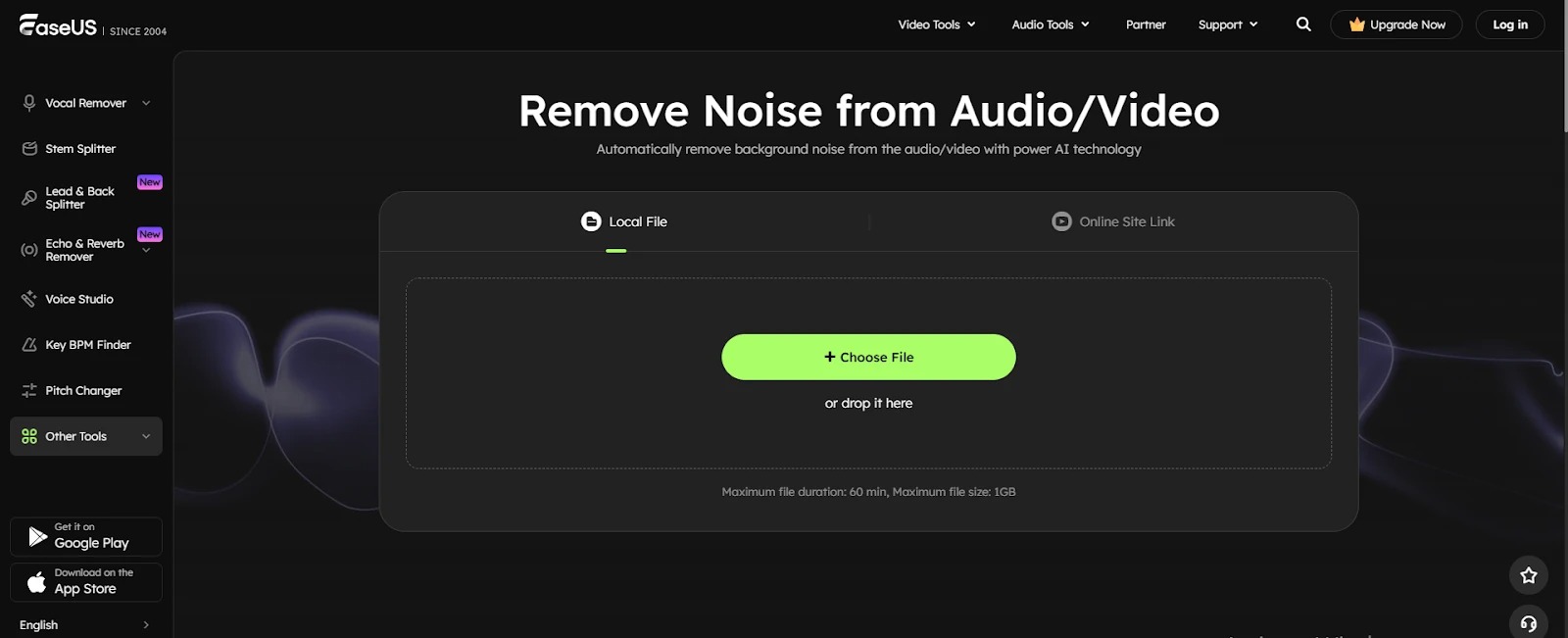
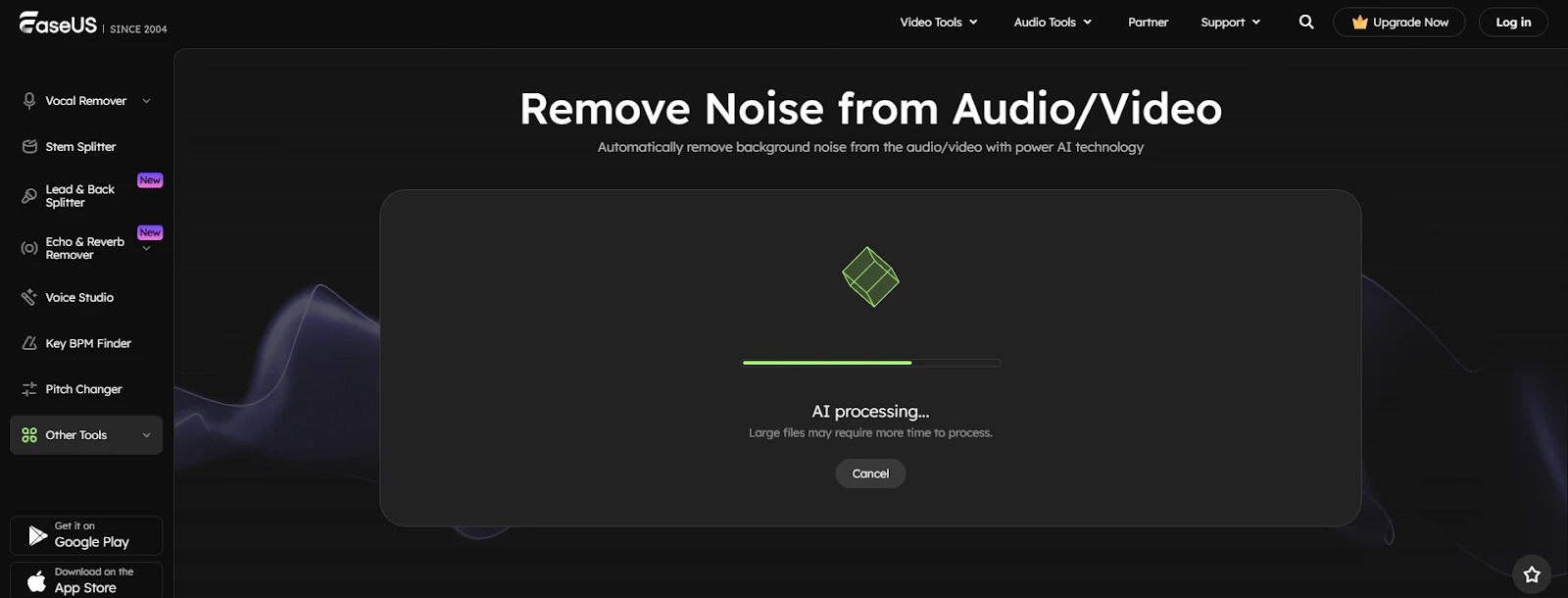
Step 3. The utility automatically analyzes and cleans files using AI. Files larger may take longer.
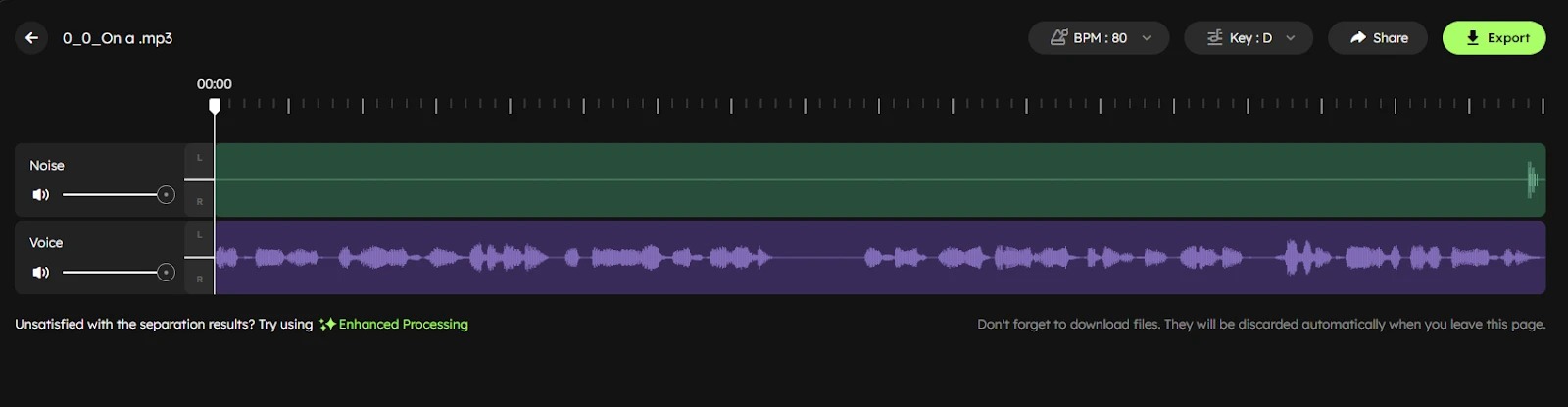
Step 4. Check the outcome after processing. If you are not satisfied, activate Enhanced Processing to further reduce the noise.
Step 5. Download cleaned audio in WAV or video format by clicking “Export.” Files may be deleted when you leave the page, so save them promptly.
Method 2: Removing Noise with Audacity
Audacity is a good free, open-source tool for recording cleanup. Its Noise Reduction effect eliminates static, hums, and low-level chatter. It may take more steps than professional paid editors, but the results are remarkable once you get the hang of it. Let’s step through it.
Step 1. Launch Audacity and open your audio file by clicking “File > Open.”
Step 2. Find an audio segment with only background noise. Longer samples yield better results. Drag your mouse over it to highlight.
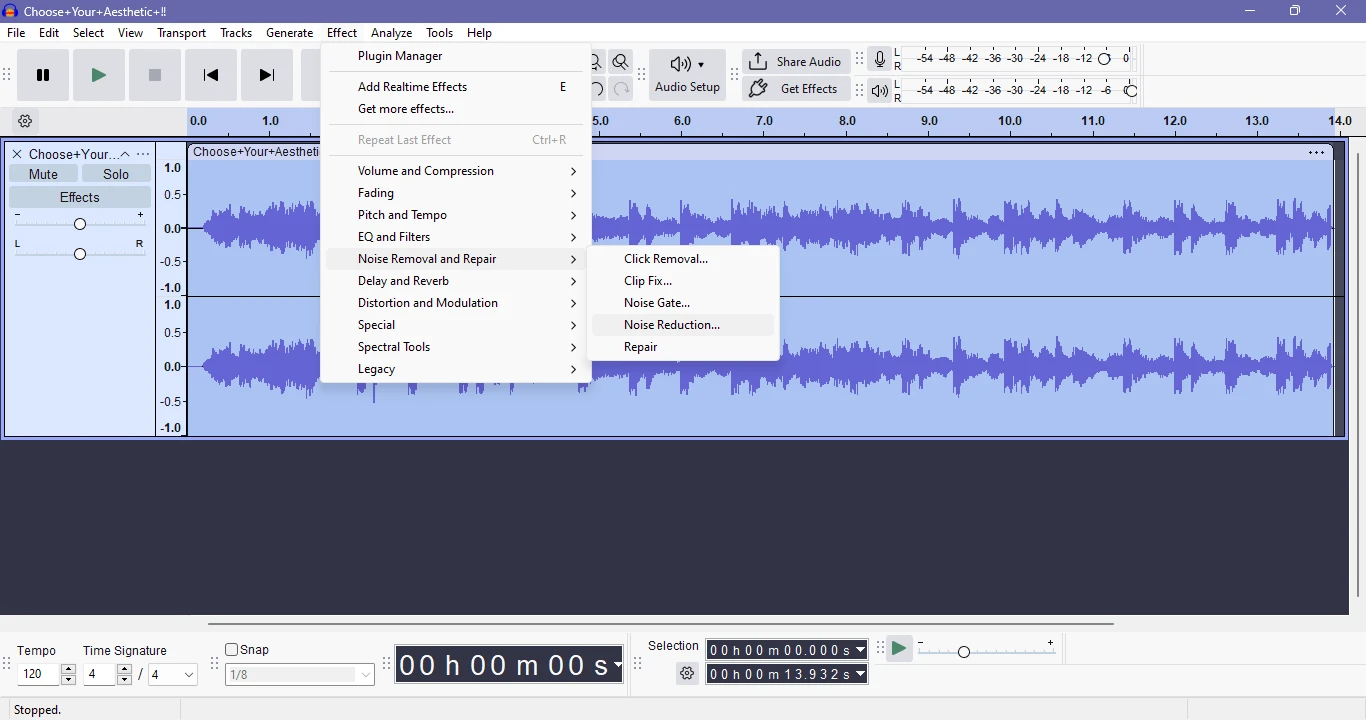
Step 3. Go to “Effect > Noise Removal and Repair > Noise Reduction.” Audacity will analyze the sample to identify the undesirable noise.
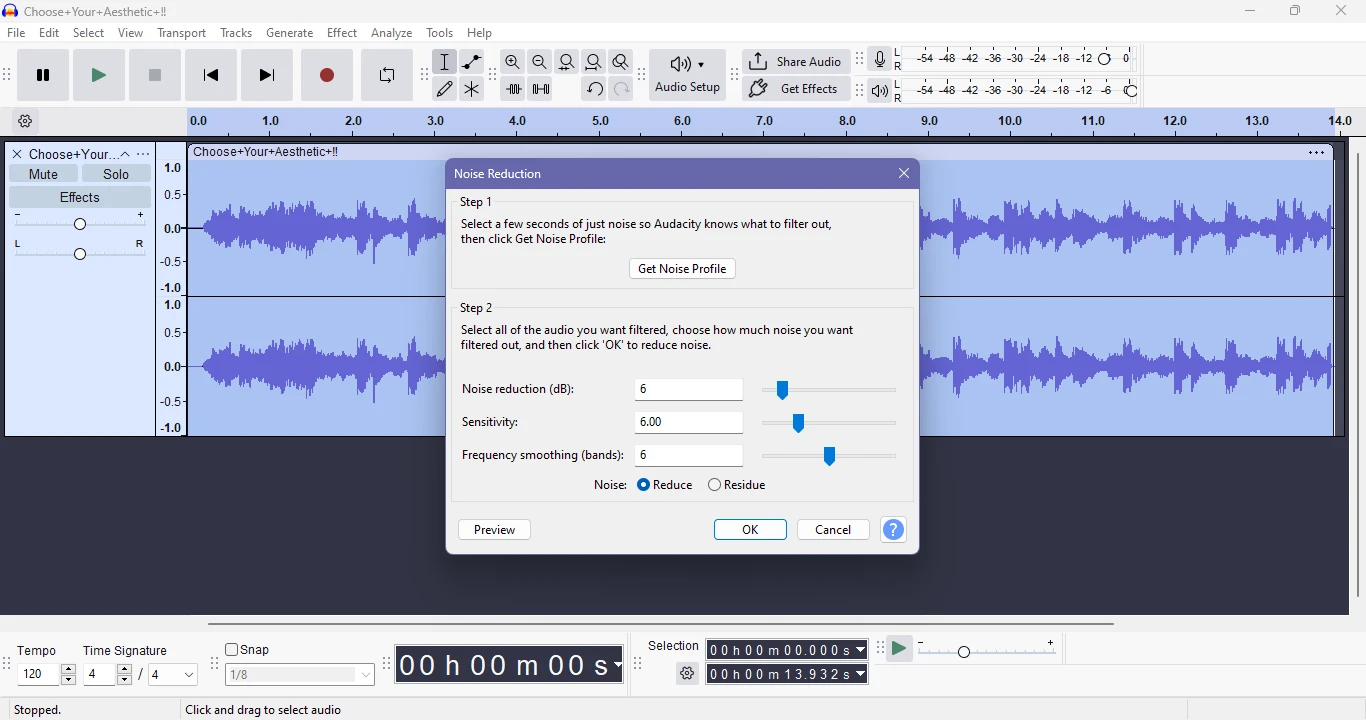
Step 4. Click on Get Noise Profile. Hold the Ctrl + A (Windows) or Command + A (Mac) keys to select the full track. Reopen “Effect > Noise Removal and Repair > Noise Reduction.” Click “OK” to apply.
Tips for Preventing Background Noise During Recording
Audio recording should be as clean as feasible. Here are some simple tips:
1. Choose a quiet environment
Get going with your area. Closed doors and windows will prevent noise from the road, people talking, or birds from interfering with your recording session. Fans, TVs, and air conditioning should be turned off because even the tiniest of humming noises coming from the appliances might find their way into your recording. If possible, make your recordings at a time of day when the noise level is lower.
2. Use an external microphone
Although they are suitable for short occasions, built-in mics in laptops or phones tend to pick up too much ambient noise. An external microphone, preferably a USB or condenser microphone, will allow you to record your voice with minimal disturbances. Even a low-cost microphone can significantly improve your sound quality compared to built-in ones.
3. Control plosives and breathing sounds
An open-mic session is a few inches from your mouth, but the loudest side of your voice remains. A pop filter or a foam windscreen is used to make sounds like hissing become less sharp, and so you should take a deep breath before going into the mic. The small changes in distance and the position of the microphone can greatly affect the naturalness of your recording
4. Reduce echo with soft furnishings
Sounds bouncing off hard surfaces are called echoes and are the primary reason for the reduction in audio quality. Installing carpets, curtains, or even furniture with upholstery in your room can help significantly in absorbing sound reflections. If you don’t have a wall-to-wall carpeted room, simply hang some old blankets or place a few pillows around your recording spot. Another option for you could be recording in the closet, which will give you a warm and echo-free sound.
5. Test your setup before recording
A short test should always be performed before the actual recording is made. Unseen buzzing, static, or background hums might be there for you to find. Lower or raise the microphone sensitivity, change the location of your setup, or adjust your software settings until the sound is clear. Finding problems early means you don’t waste time redoing work, and it also saves you editing time.
Even after following these tips, background noise may slip in. Don’t worry—EaseUS Online Noise Reducer uses clever AI to remove noise and clarify your voice automatically.
Conclusion
Background noise can ruin a great recording, but the right setup can solve it. This article covers the tools Audacity and EaseUS Online Noise Reducer, one of which is manual, and the other employs AI. EaseUS Noise Reducer is fast, easy, and trustworthy, whereas Audacity gives experts detailed control. EaseUS Online Noise Reducer excels in speed, accuracy, and simplicity.